
Connect & test
연결과 테스트
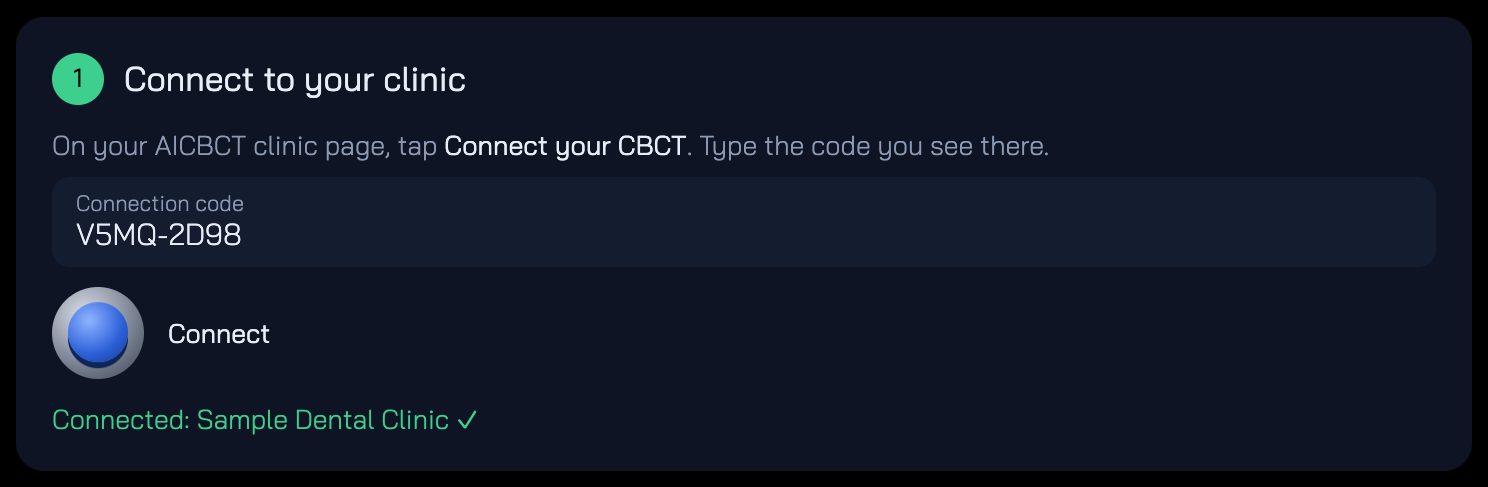
Type the connection code
연결 코드 입력
Type the code from the dentist's AICBCT page and tap Connect. Your clinic name appears with a ✓.
치과의사의 AICBCT 페이지에 나온 코드를 넣고 Connect를 누릅니다. 클리닉 이름과 ✓가 나타납니다.
Pick your CBCT software
CBCT 소프트웨어 선택
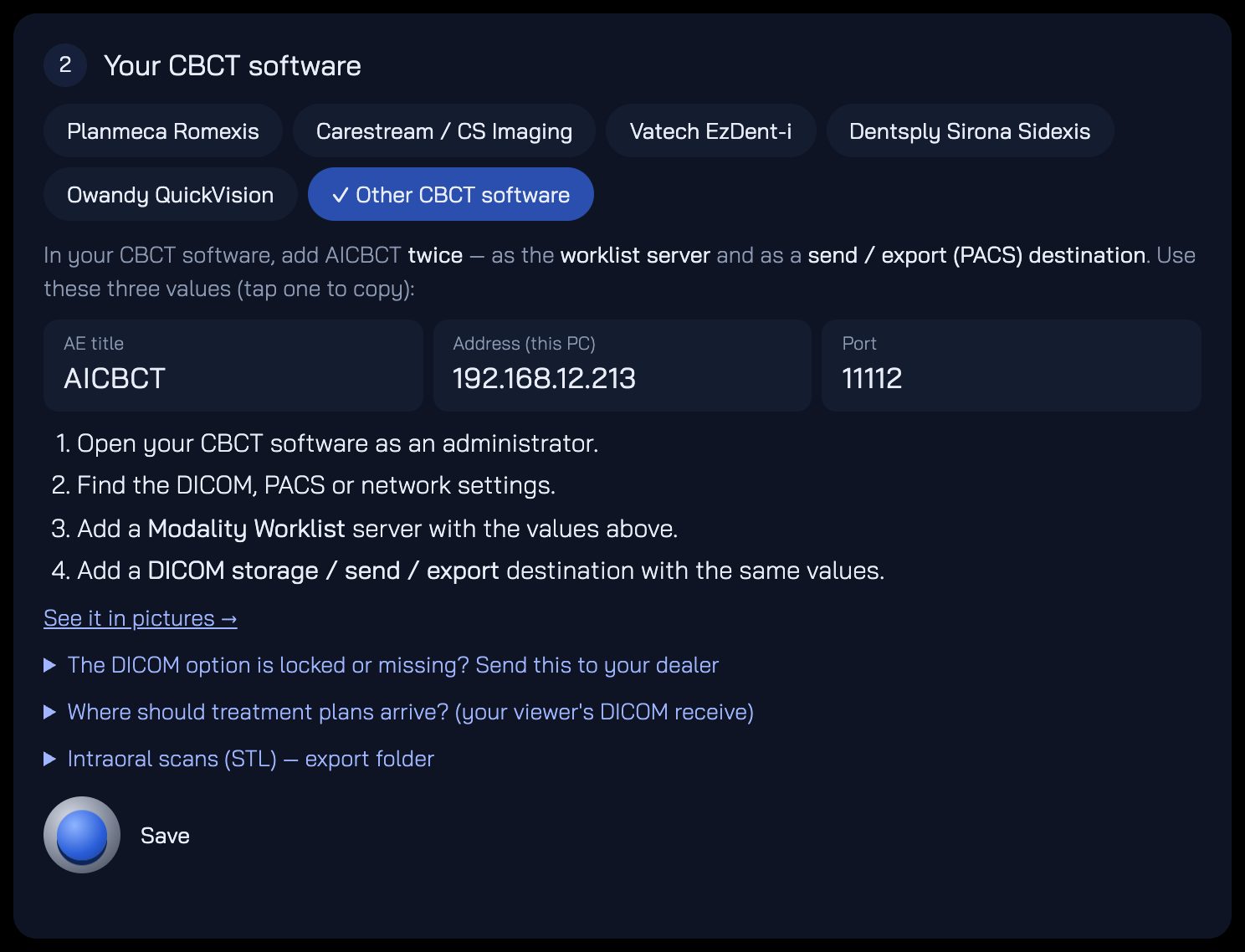
Tap your program. The Bridge shows three values — tap one to copy it.
쓰는 프로그램을 누릅니다. Bridge가 세 값을 보여 줍니다. 누르면 복사됩니다.
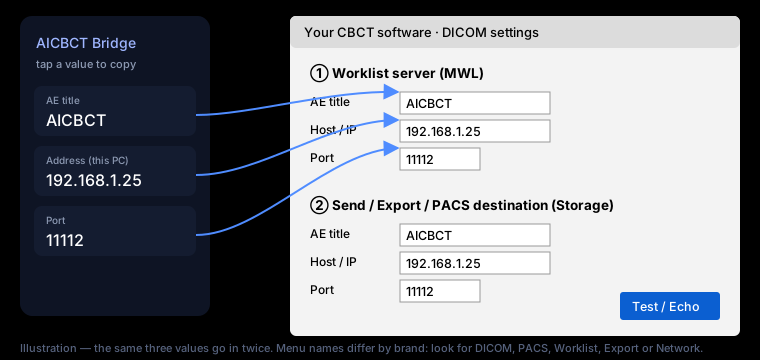
Put them in your CBCT software — twice
CBCT 소프트웨어에 두 번 넣기
Once as the worklist server, once as a send / export (PACS) destination. Same three values both times. Brand by brand →
한 번은 워크리스트 서버로, 한 번은 전송·내보내기(PACS) 대상으로. 두 번 모두 같은 세 값입니다. 브랜드별 안내 →
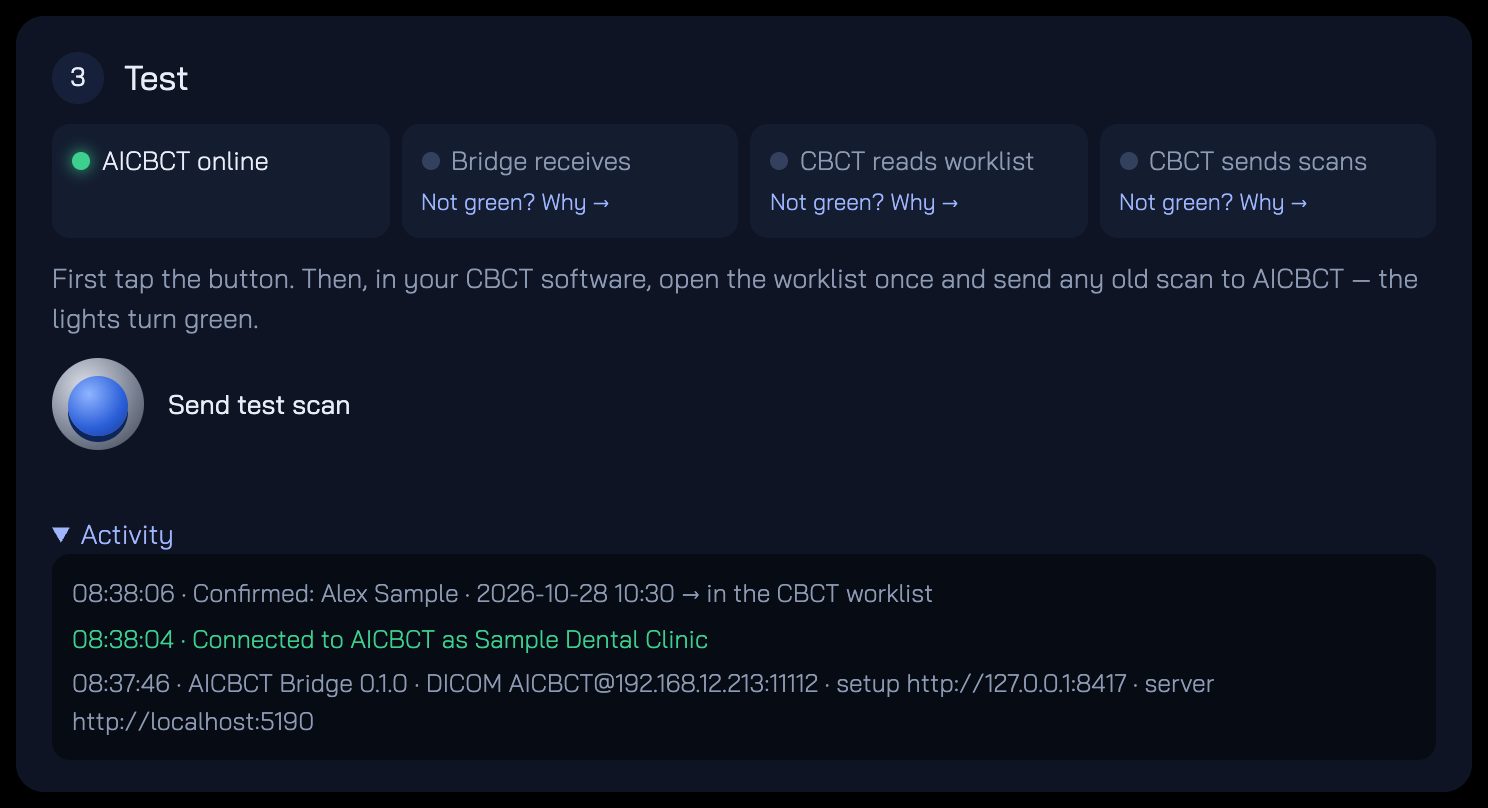
Test until four lights are green
불 네 개가 초록이 될 때까지 테스트
Tap Send test scan. Then in your CBCT software open the worklist once, and send any old scan to AICBCT. A light stays grey? Tap Why → under it.
Send test scan을 누릅니다. 그다음 CBCT 소프트웨어에서 워크리스트를 한 번 열고, 예전 촬영 하나를 AICBCT로 보내 보세요. 회색으로 남은 불이 있으면 그 아래 Why →를 누르세요.
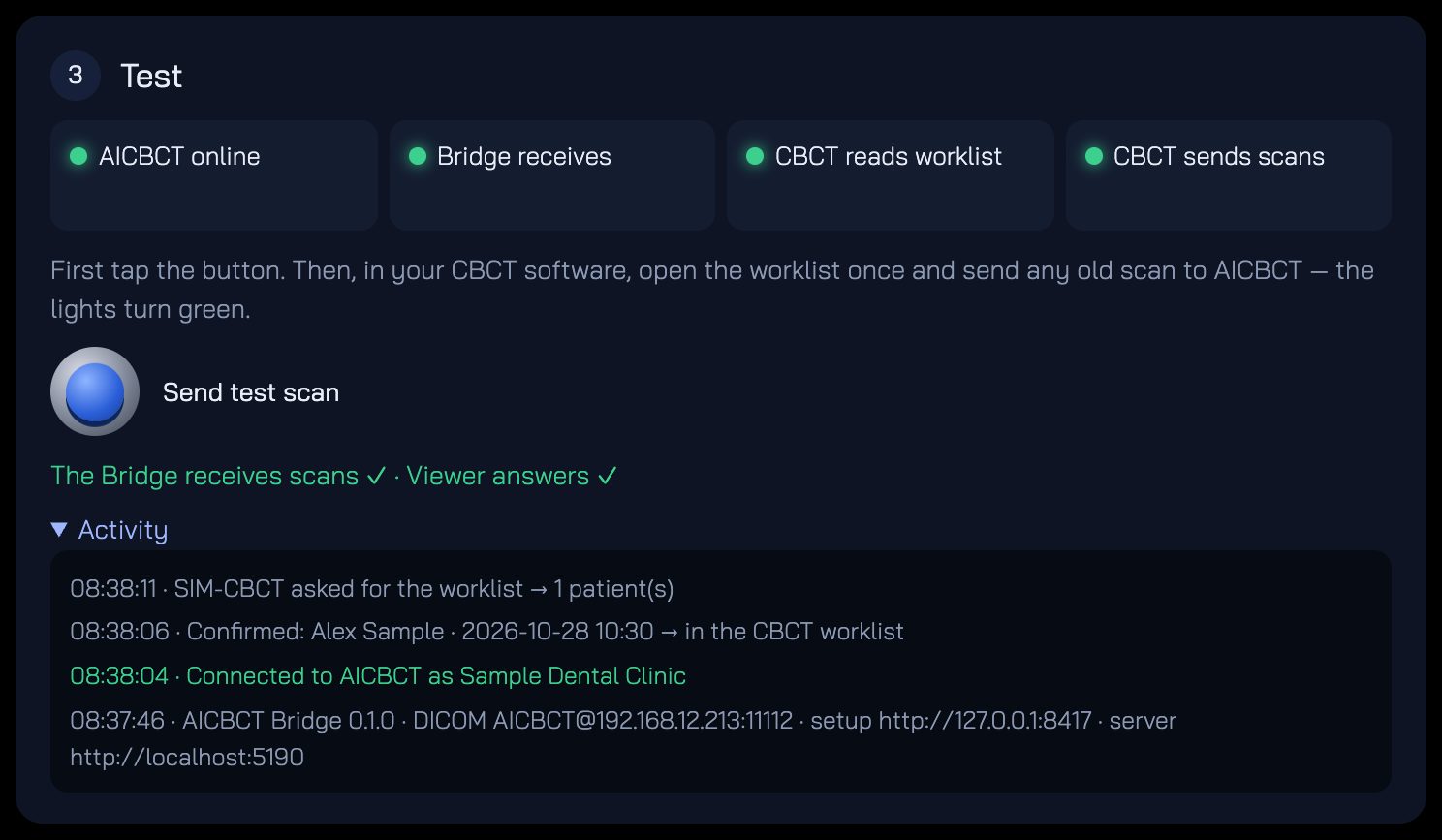
Done. Patients the dentist confirms on AICBCT now appear in your CBCT worklist. Only those patients' scans are sent; your other patients stay in your clinic.
끝났습니다. 이제 치과의사가 AICBCT에서 확정한 환자가 CBCT 워크리스트에 나타납니다. 그 환자들의 촬영만 전송되고, 다른 환자 영상은 클리닉 밖으로 나가지 않습니다.