Install
설치
Download
내려받기
On the Bridge PC, open aicbct.com/bridge.html and tap Download.
Bridge PC에서 aicbct.com/bridge.html을 열고 Download를 누릅니다.
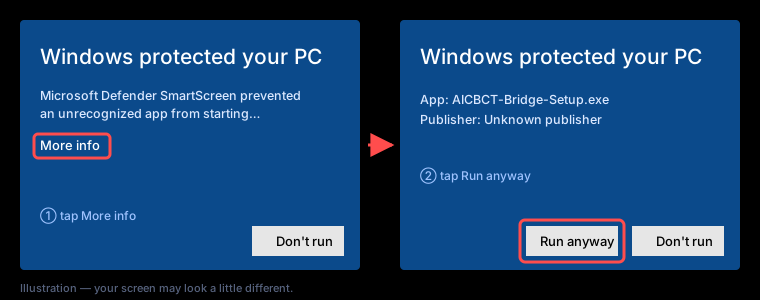
Open it — "Windows protected your PC"
열기 — "Windows의 PC 보호" 창
Windows does not know the Bridge yet. Tap More info, then Run anyway.
윈도우가 아직 Bridge를 모릅니다. 추가 정보를 누른 뒤 실행을 누르세요.
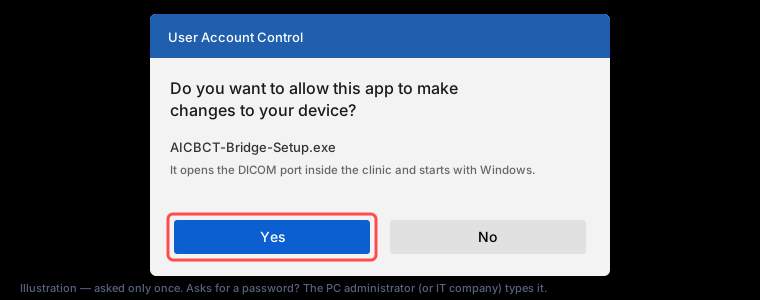
Say Yes once
한 번만 "예"
Windows asks once if the Bridge may make changes. Tap Yes. The Bridge then opens its port inside the clinic and starts with Windows by itself. The clinic owner already authorized this when registering the CBCT.
윈도우가 Bridge가 변경해도 되는지 한 번 묻습니다. 예를 누르세요. 그러면 Bridge가 클리닉 안의 포트를 열고 윈도우와 함께 시작하도록 스스로 설정합니다. 클리닉 대표가 CBCT 등록 때 이미 허가했습니다.
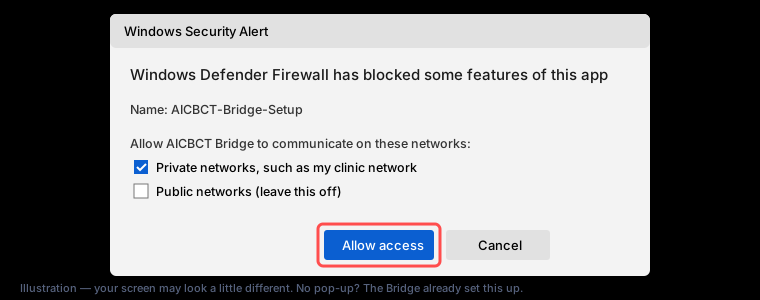
A firewall window instead? Keep Private networks ticked and tap Allow access.
방화벽 창이 대신 뜨면 개인 네트워크를 체크한 채 액세스 허용을 누르세요.
The setup page opens by itself
설정 화면이 저절로 열립니다
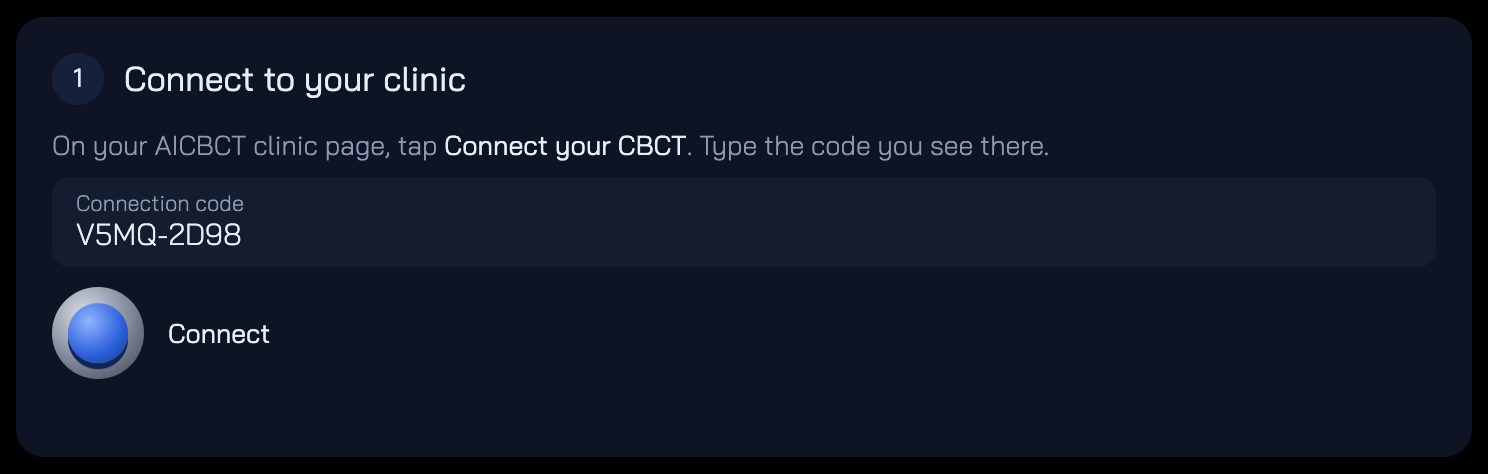
A black page with three steps opens in the browser. From now on the Bridge starts by itself with Windows. If the page is closed, open http://127.0.0.1:8417.
브라우저에 세 단계가 있는 검은 화면이 열립니다. 이제부터 Bridge는 윈도우와 함께 저절로 켜집니다. 화면을 닫았다면 http://127.0.0.1:8417을 여세요.